> ## Documentation Index
> Fetch the complete documentation index at: https://developers.trycents.com/llms.txt
> Use this file to discover all available pages before exploring further.
# Create Order workflow
This guide walks through a sample workflow for placing an order using the Dispatch API.
We'll cover authentication, store services, and choosing delivery days, as well as order creation.
#### API Endpoints Overview
The API provides these key endpoints:
* **GET /stores/available** - Get the nearest store by customer address
* **GET /stores/:storeId/services** - Get available services by customer address
* **GET /stores/:storeId/delivery-windows** - Get available delivery time slots
* **GET /stores/:storeId/delivery-settings** - Get store delivery settings
* **POST /service-order** - Place the order
### Step 1. Authentication
Before making any API calls, authenticate to obtain an access token.
All API endpoints are authenticated using Bearer HTTP authentication.
Call [POST /request-otp](/api-reference/endpoint/auth/request-otp) to send an SMS message with an OTP code to your phone number
After receiving the one-time password in SMS message, you need to [verify (POST /verify-otp)](/api-reference/endpoint/auth/verify-otp) code to get an access token.
Pass the `token` from the response for subsequent API requests in the Authorization property.
### Step 2. Find the nearest store
First, determine which stores are available for the customer's delivery address. The endpoint [GET /stores/available](/api-reference/endpoint/stores/getAvailableStore) returns the nearest store.
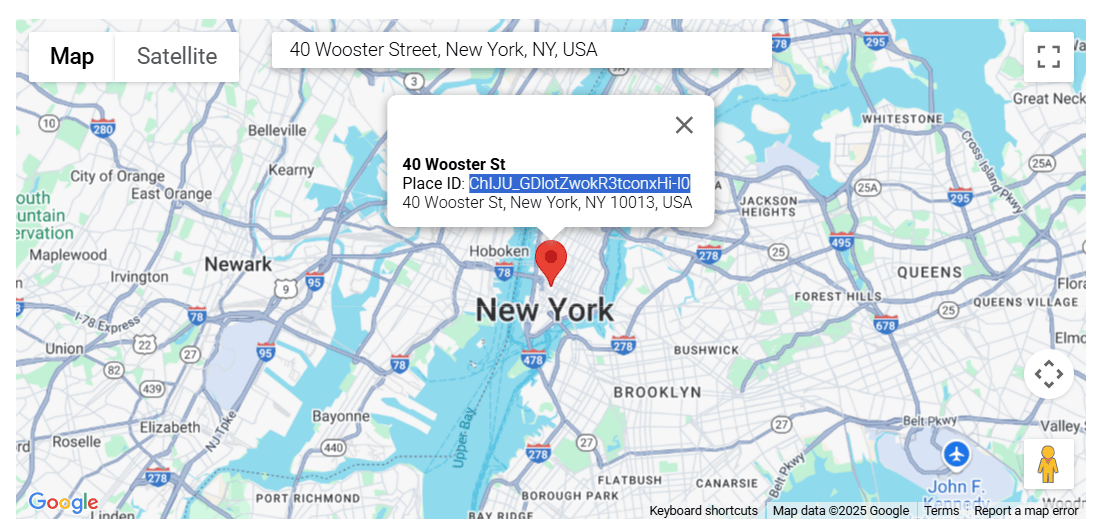
Get your address in Google Place ID format using this link [Place ID Geocoder](https://developers.google.com/maps/documentation/javascript/examples/places-placeid-geocoder)
and pass in the request query `googlePlacesId` field
 ```example theme={null}
Address - 40 Wooster Street, New York, NY, USA
Place ID - ChIJU_GDlotZwokR3tconxHi-I0
```
```json Code Example theme={null}
{
"id": 1,
"name": "New Store",
"address": "40 Wooster St",
...
}
```
For subsequent requests, save only the store ID specified in the `id` field.
### Step 3. Select services
Now that we have a store, let's see what services they offer for the selected address.
Use [GET /stores/:storeId/services](/api-reference/endpoint/stores/getServices) to get a list of available services with modifiers for the selected store.
```json Code Example theme={null}
[{
"id": 14,
"name": "Store Pickup",
"description": "Pick up your order at the store",
...
"modifiers": [{
"id": 125,
"name": "Modifier for the Store Pickup",
...
}]
}, {
"id": 98,
"name": "Service 2",
...
"modifiers": [{
"id": 126,
"name": "Modifier for the Service 2",
...
}]
}]
```
From this response, select the **id** values of the services and modifiers you want to offer to the order. These will be needed when creating the order.
```json Code Example theme={null}
{
"orderServices": [{
"servicePriceId": 14, // ID of service
"modifiers": [125] // array of modifier IDs for the selected service
}]
}
```
### Step 4. Browse delivery window shifts
Next, check available delivery time slots for a specific date and your address.
Use [GET /stores/:storeId/delivery-windows](/api-reference/endpoint/stores/getDeliveryWindows) to get available pickup and delivery windows by date for your own drivers, on-demand drivers or both— depending on what your business offers.
> #### Sample request query:
>
> `GET /stores/:storeId/delivery-windows?date=2025-02-07T18:30:00&type=PICKUP&googlePlacesId=id&categories[0]=LAUNDRY`
>
> **date** - for which date to find delivery pickup/return windows in ISO format (2025-02-07T18:30:00.000Z)
>
> **type** - PICKUP or RETURN
>
> **googlePlacesId** - id that you got in the step 2 (example ChIJU\_GDlotZwokR3tconxHi-I0)
>
> **categories** - array of selected category services (LAUNDRY, DRY\_CLEANING)
>
> **servicesIds** - id of selected service from the step 3
```json Code Example theme={null}
{
"onDemandDelivery": [{
"dayIndex": 6,
"deliveryFeeInCents": 610,
"display": {
"displayDate": "Saturday, Jun 28",
"price": "$4.10 one way",
},
"endTime": "2025-06-28T22:00:00.000Z",
"id": 6671,
"startTime": "2025-06-28T21:30:00.000Z",
}],
"ownDelivery": [{
"dayIndex": 6,
"deliveryFeeInCents": 1000,
"display": {
"displayDate": "Saturday, Jun 28",
"price": "$5.00 one way",
},
"endTime": "2025-06-29T00:00:00.000Z",
"id": 6622,
"maxStops": null,
"orderDeliveriesCount": 0,
"recurringSubscriptionCount": 0,
"serviceType": "ALL",
"startTime": "2025-06-28T23:30:00.000Z",
}],
"onDemandProviderDetails": {
"name": "Uber",
}
}
```
* If you need pickup & delivery for your own drivers, select the **ID**, **startTime**, **endTime** in ISO format of the window from **ownDelivery**
* If you need pickup & delivery from Cents' on-demand partners, select the **ID**, **startTime**, **endTime** in ISO format of the window from **onDemandDelivery**
### Step 5. Browse payment method
Next, select one payment method **paymentMethodToken** from your accounts
Use [GET /customers/payment-methods](/api-reference/endpoint/customer/getPaymentMethods)
If your account doesn't have any cards on file, leave the paymentMethodToken as empty
### Step 6. Browse delivery address
Next, select one address ID from the [GET /customers/:centsCustomerId/addresses](/api-reference/endpoint/customer/getAddresses)
If your account doesn't have any cards on file, leave the paymentMethodToken as empty
### Step 7. Create the Order
Finally, create the order with selected services and pickup/return delivery windows.
Use [POST /service-order](/api-reference/endpoint/serviceOrder/createServiceOrder)
> **NOTES**
>
> * Must include selected service IDs exactly as returned
> * Must use delivery window IDs exactly as returned
> * Delivery days format must match the ISO format without time - "2025-02-12"
```json Code Sample theme={null}
{
"customerAddressId": "",
"storeId": 339,
"bagCount": 2,
"orderServices": [{
"servicePriceId": 14, // ID of service
"serviceModifierIds": [125] // array of modifier IDs for the selected service
}],
"hasDryCleaning": false,
"isHangDrySelected": true,
"turnAroundInHours": 48,
"paymentToken": "token from stripe",
"subscription": {
"interval": 2
},
"returnMethod": "DELIVERY",
"orderDelivery": {
"pickup": {
"deliveryDay": "2025-06-28",
"deliveryProvider": "OWN_DRIVER",
"windowId": 6622,
"totalDeliveryCost": 0,
"courierTip": 0
},
"delivery": {
"deliveryDay": "2025-06-30",
"deliveryProvider": "ON_DEMAND",
"windowId": 6666,
"totalDeliveryCost": 0,
"courierTip": 0,
}
},
}
```
```example theme={null}
Address - 40 Wooster Street, New York, NY, USA
Place ID - ChIJU_GDlotZwokR3tconxHi-I0
```
```json Code Example theme={null}
{
"id": 1,
"name": "New Store",
"address": "40 Wooster St",
...
}
```
For subsequent requests, save only the store ID specified in the `id` field.
### Step 3. Select services
Now that we have a store, let's see what services they offer for the selected address.
Use [GET /stores/:storeId/services](/api-reference/endpoint/stores/getServices) to get a list of available services with modifiers for the selected store.
```json Code Example theme={null}
[{
"id": 14,
"name": "Store Pickup",
"description": "Pick up your order at the store",
...
"modifiers": [{
"id": 125,
"name": "Modifier for the Store Pickup",
...
}]
}, {
"id": 98,
"name": "Service 2",
...
"modifiers": [{
"id": 126,
"name": "Modifier for the Service 2",
...
}]
}]
```
From this response, select the **id** values of the services and modifiers you want to offer to the order. These will be needed when creating the order.
```json Code Example theme={null}
{
"orderServices": [{
"servicePriceId": 14, // ID of service
"modifiers": [125] // array of modifier IDs for the selected service
}]
}
```
### Step 4. Browse delivery window shifts
Next, check available delivery time slots for a specific date and your address.
Use [GET /stores/:storeId/delivery-windows](/api-reference/endpoint/stores/getDeliveryWindows) to get available pickup and delivery windows by date for your own drivers, on-demand drivers or both— depending on what your business offers.
> #### Sample request query:
>
> `GET /stores/:storeId/delivery-windows?date=2025-02-07T18:30:00&type=PICKUP&googlePlacesId=id&categories[0]=LAUNDRY`
>
> **date** - for which date to find delivery pickup/return windows in ISO format (2025-02-07T18:30:00.000Z)
>
> **type** - PICKUP or RETURN
>
> **googlePlacesId** - id that you got in the step 2 (example ChIJU\_GDlotZwokR3tconxHi-I0)
>
> **categories** - array of selected category services (LAUNDRY, DRY\_CLEANING)
>
> **servicesIds** - id of selected service from the step 3
```json Code Example theme={null}
{
"onDemandDelivery": [{
"dayIndex": 6,
"deliveryFeeInCents": 610,
"display": {
"displayDate": "Saturday, Jun 28",
"price": "$4.10 one way",
},
"endTime": "2025-06-28T22:00:00.000Z",
"id": 6671,
"startTime": "2025-06-28T21:30:00.000Z",
}],
"ownDelivery": [{
"dayIndex": 6,
"deliveryFeeInCents": 1000,
"display": {
"displayDate": "Saturday, Jun 28",
"price": "$5.00 one way",
},
"endTime": "2025-06-29T00:00:00.000Z",
"id": 6622,
"maxStops": null,
"orderDeliveriesCount": 0,
"recurringSubscriptionCount": 0,
"serviceType": "ALL",
"startTime": "2025-06-28T23:30:00.000Z",
}],
"onDemandProviderDetails": {
"name": "Uber",
}
}
```
* If you need pickup & delivery for your own drivers, select the **ID**, **startTime**, **endTime** in ISO format of the window from **ownDelivery**
* If you need pickup & delivery from Cents' on-demand partners, select the **ID**, **startTime**, **endTime** in ISO format of the window from **onDemandDelivery**
### Step 5. Browse payment method
Next, select one payment method **paymentMethodToken** from your accounts
Use [GET /customers/payment-methods](/api-reference/endpoint/customer/getPaymentMethods)
If your account doesn't have any cards on file, leave the paymentMethodToken as empty
### Step 6. Browse delivery address
Next, select one address ID from the [GET /customers/:centsCustomerId/addresses](/api-reference/endpoint/customer/getAddresses)
If your account doesn't have any cards on file, leave the paymentMethodToken as empty
### Step 7. Create the Order
Finally, create the order with selected services and pickup/return delivery windows.
Use [POST /service-order](/api-reference/endpoint/serviceOrder/createServiceOrder)
> **NOTES**
>
> * Must include selected service IDs exactly as returned
> * Must use delivery window IDs exactly as returned
> * Delivery days format must match the ISO format without time - "2025-02-12"
```json Code Sample theme={null}
{
"customerAddressId": "",
"storeId": 339,
"bagCount": 2,
"orderServices": [{
"servicePriceId": 14, // ID of service
"serviceModifierIds": [125] // array of modifier IDs for the selected service
}],
"hasDryCleaning": false,
"isHangDrySelected": true,
"turnAroundInHours": 48,
"paymentToken": "token from stripe",
"subscription": {
"interval": 2
},
"returnMethod": "DELIVERY",
"orderDelivery": {
"pickup": {
"deliveryDay": "2025-06-28",
"deliveryProvider": "OWN_DRIVER",
"windowId": 6622,
"totalDeliveryCost": 0,
"courierTip": 0
},
"delivery": {
"deliveryDay": "2025-06-30",
"deliveryProvider": "ON_DEMAND",
"windowId": 6666,
"totalDeliveryCost": 0,
"courierTip": 0,
}
},
}
```